Save a correction
Enable writing History in LinguaPilot to keep your selected writing sessions on this computer.
Your writing can become your next lesson. LinguaPilot uses corrections saved in your History to help you practice the grammar, verb forms and spelling that matter to you.
Write as usual. Review a correction. Choose Learn from My Mistakes to practice with exercises based on your own text.
Windows app · Local or cloud writing assistant · Cloud AI used for exercises with your permission
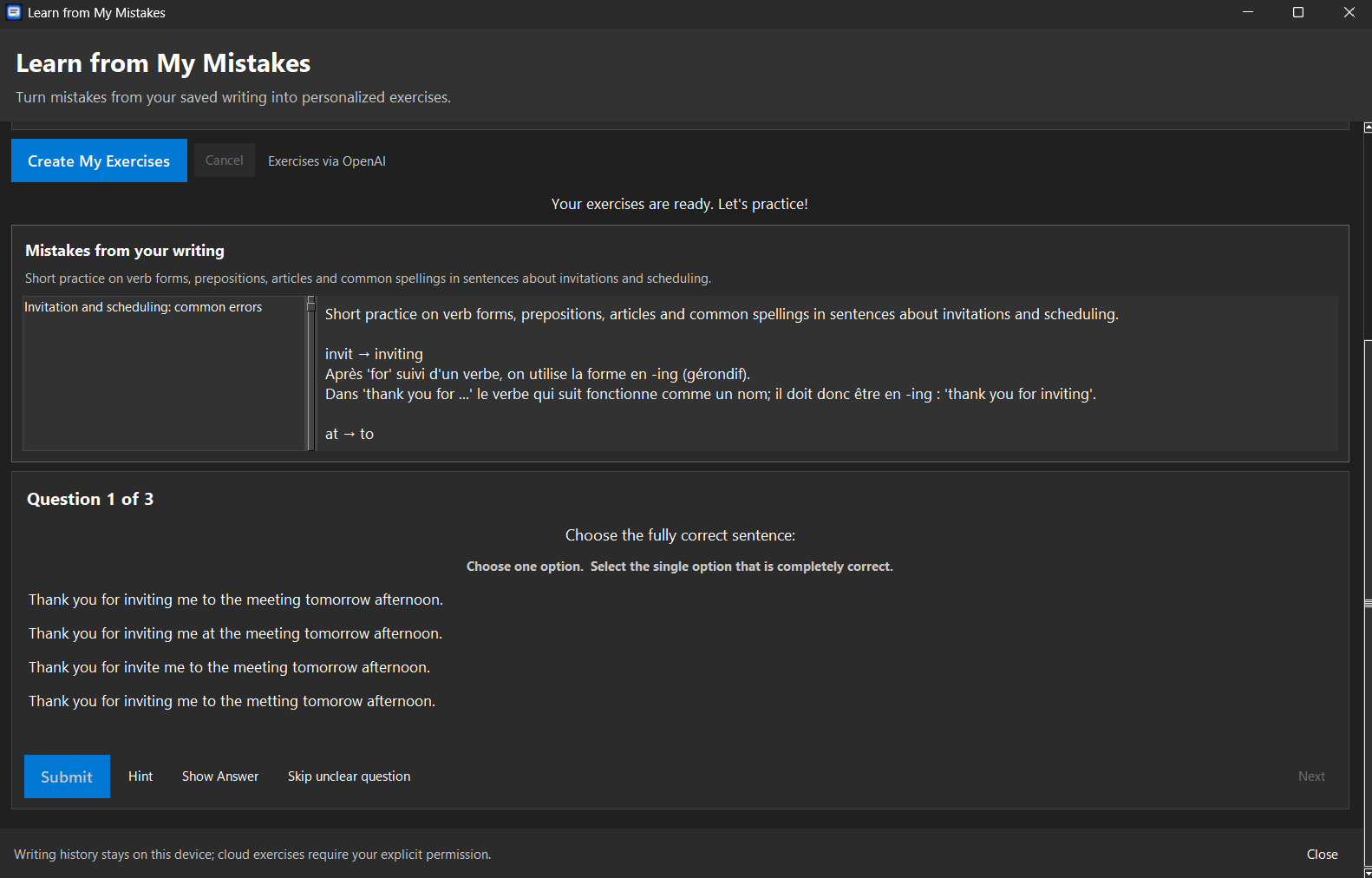
You do not need to choose a grammar topic before you start. Your saved writing provides the starting point.
Enable writing History in LinguaPilot to keep your selected writing sessions on this computer.
Choose a saved correction and select Learn from My Mistakes. You remain in control of which writing you use.
Choose a configured cloud AI model, approve the request, then work through your personalized exercises and feedback.
A grammar guide starts with a topic. LinguaPilot starts with the mistakes in a correction you choose. Exercises can cover several useful points together, rather than repeating the same word again and again.
Thank you for invit me at the meeting tomorrow.
Corrected writingThank you for inviting me to the meeting tomorrow.
A useful practice topic: using the -ing form after “thank you for” and the right preposition for an invitation. Actual questions depend on your selected correction and AI model.
Instead of memorizing isolated answers, work with examples that help you recognize and apply a correction in new sentences.
Work on subject–verb agreement, tense, articles and sentence structures when these are relevant to your writing.
Review spelling mistakes without turning every small typo into a long, repetitive lesson.
Check your answer, ask for a hint or reveal the solution. Short explanations help you understand the correction.
If a saved writing session has no meaningful language errors to practice, LinguaPilot does not create exercises just to fill a lesson. AI-generated feedback may still need your judgment.
History saves corrections on your Windows computer when you enable it. You can change this setting in LinguaPilot and review your saved sessions later.
Creating exercises uses a cloud AI provider you configure. LinguaPilot asks for your permission before sending the selected writing. Do not submit confidential writing unless you are comfortable with the provider's terms and privacy practices.
Read the privacy policy →For writing: local Ollama or a supported cloud AI provider, according to your setup.
For personalized exercises: a saved History correction, a configured cloud AI provider and your approval to send the selected text.
Cloud charges: API usage is subject to the provider's pricing, quota and account settings.
Open History, select a saved correction, and choose Learn from My Mistakes. If History is empty, first enable it and save a writing correction.
Yes. Personalized exercises use a supported cloud AI provider with your own configured API key. LinguaPilot's regular writing assistant can still use a local Ollama model without a cloud key.
No. Writing History is stored locally when you enable it. You choose the correction and authorize the cloud request before generating exercises.
If no relevant language errors are found in the selected correction, there is no need to create practice questions. You can choose another saved writing session.
AI can make mistakes. Review the feedback, use the option to skip an unclear question, and use your judgment when an explanation does not seem right.
No. You can continue using LinguaPilot's usual writing and rewriting modes, with local Ollama or your chosen cloud AI provider. Personalized exercises are an optional feature accessed from History.
Start with LinguaPilot's Windows writing assistant, then practice the mistakes that appear in your saved writing.
Download the Free Trial