Windows 10 / 11 · Local AI setup guide
How to set up Local AI in LinguaPilot with Ollama on Windows
This guide explains both setup paths in LinguaPilot: the automatic local setup for the fastest no-API experience, and the manual / advanced setup for users who want to choose their own provider or configure Ollama directly. It also includes screenshots and troubleshooting tips for common setup problems.
Automatic setup: the simplest Local AI path
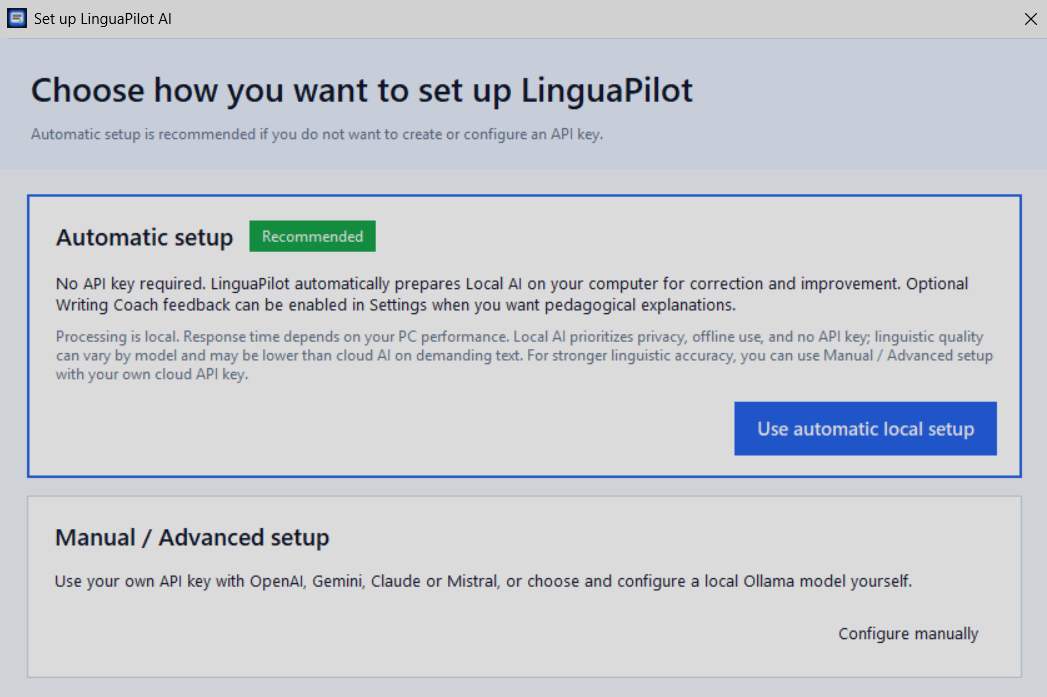
Choose the automatic path if you want LinguaPilot to prepare Local AI for you. This is the best option if you prefer a privacy-focused setup on Windows and do not want to create an API key.
1Choose automatic local setup
On the setup screen, click Use automatic local setup. LinguaPilot then checks what is already installed on the computer and prepares the missing Local AI components.
- No API key is required.
- Ollama runs locally on the PC.
- The Writing Coach explanations remain optional and can be enabled later in Settings.
2Wait while LinguaPilot checks the PC and prepares Local AI
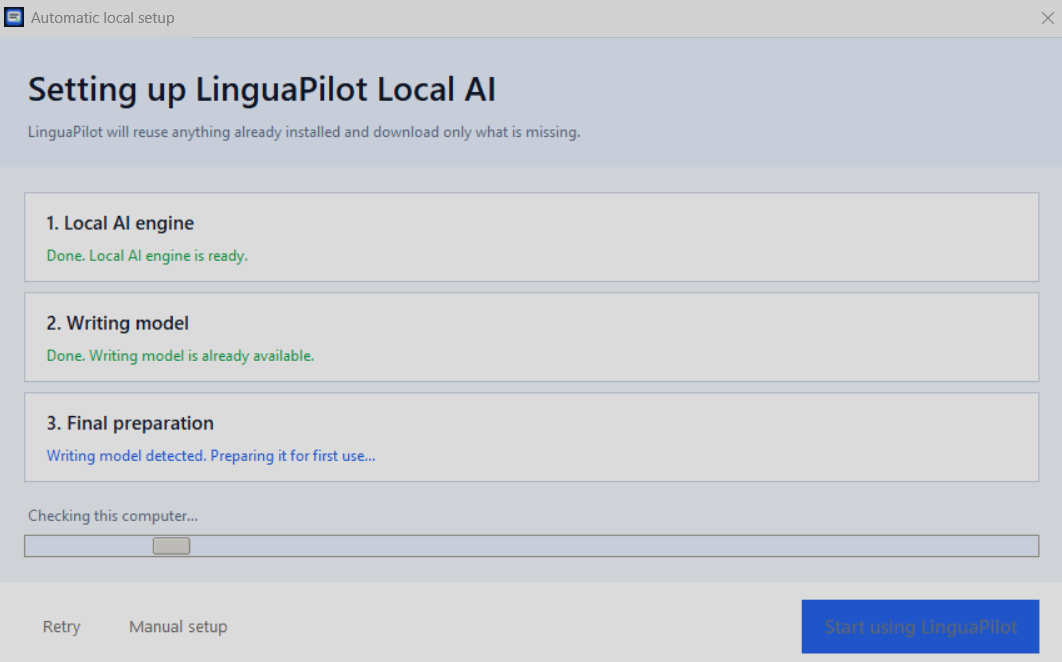
LinguaPilot verifies the Local AI engine, checks whether the writing model is already available, and completes the final preparation. If Ollama and the model are already installed, this stage is usually quick.
- Local AI engine: installs or reuses Ollama.
- Writing model: downloads the recommended model only if it is missing.
- Final preparation: gets the writing model ready for first use.
Manual / advanced setup: choose your provider or configure Ollama yourself
Choose the manual / advanced path if you want to use your own cloud API key, or if you prefer to configure Ollama yourself. This path is also useful when automatic setup is blocked by a corporate policy or a local environment issue.
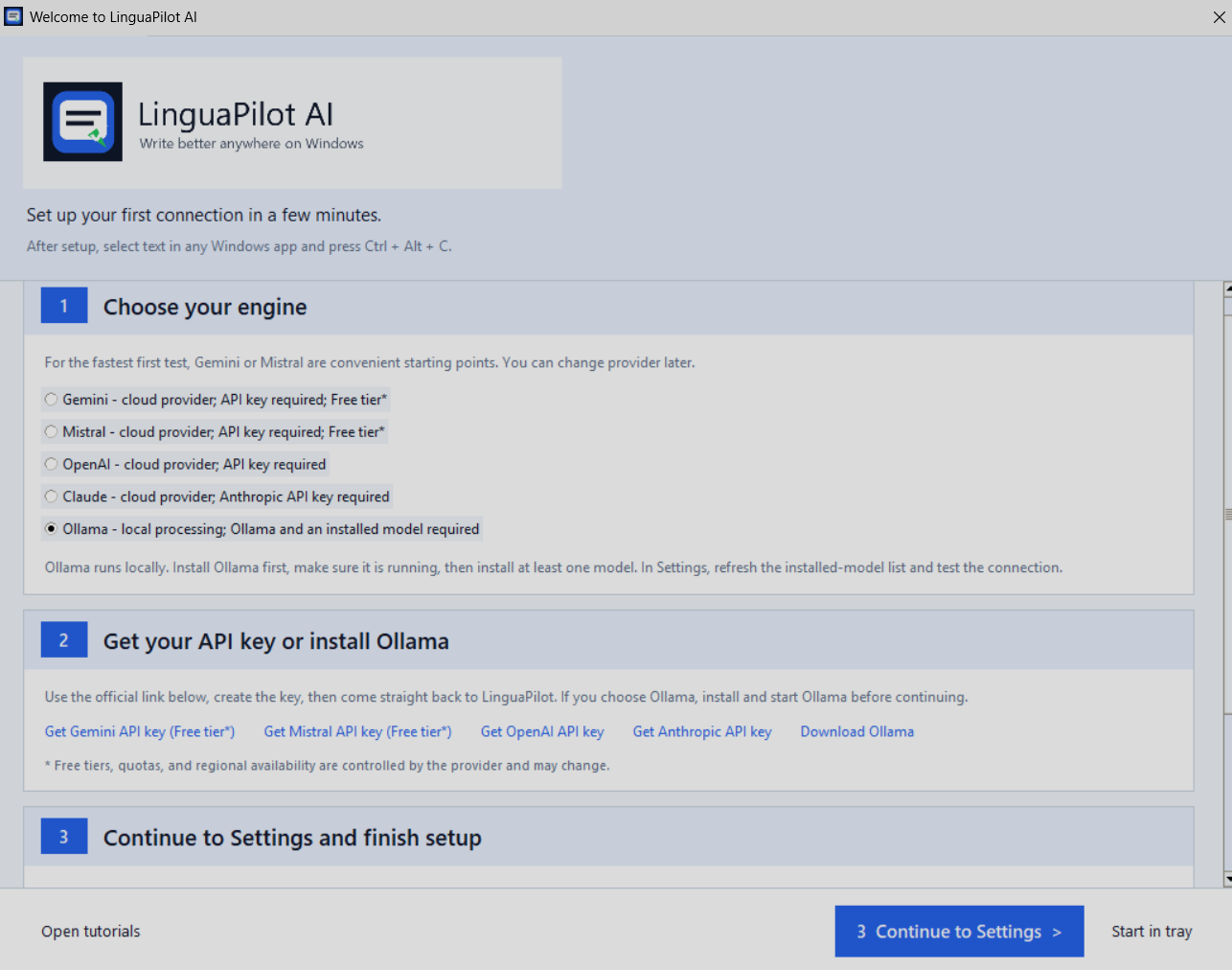
1Select your engine
In the welcome flow, choose the provider that matches your needs. Gemini and Mistral can be convenient for a quick cloud test. If you want local processing, choose Ollama.
2Install Ollama or provide your API key
If you selected Ollama, use the download link and complete the installation, then return to LinguaPilot. If you selected a cloud provider, create your API key and continue to Settings.
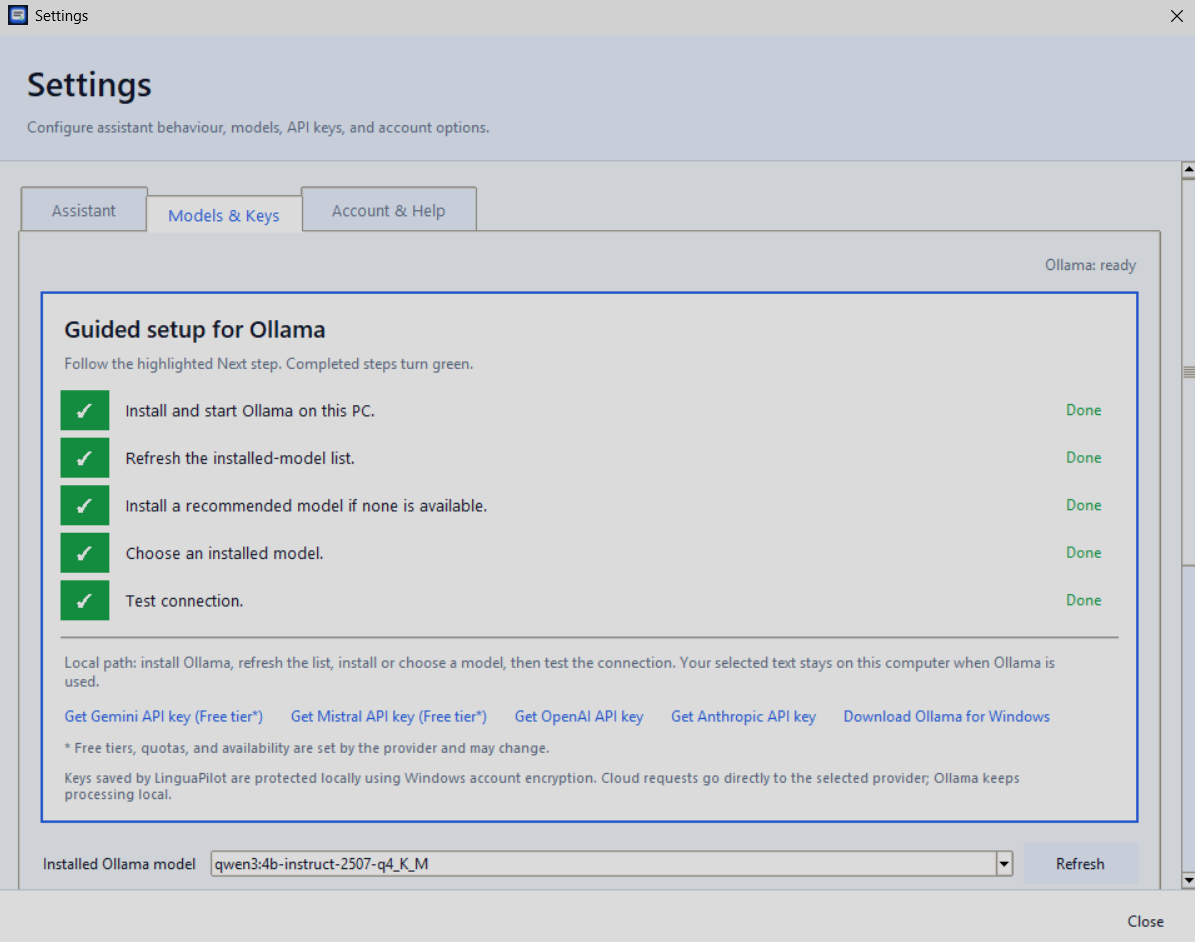
3Finish the Local AI checklist in Settings
In Models & Keys, LinguaPilot guides you through the key actions: install and start Ollama, refresh the installed-model list, install a recommended model if needed, choose a model, and test the connection.
Common setup issues and how to fix them
Installation or download fails
- Check that Windows is connected to the internet and that enough disk space is available for the installer and the model.
- Use Retry in the automatic setup window.
- If the installer remains blocked, switch to Manual setup and download Ollama from the official Ollama Windows page.
- Return to LinguaPilot after installation and finish the model selection or connection test.
Ollama is installed but not responding
- Open Ollama from the Windows Start menu and give the service a moment to start.
- Back in LinguaPilot, refresh the installed-model list or retry the setup.
- Check whether Windows security software, firewall rules, or a workplace policy is preventing Ollama from running.
- If installations are managed by your organization, contact your IT administrator.
The writing model takes time
- The recommended model is downloaded only when missing and is approximately 2.5 GB.
- Keep the PC connected while the download runs. On slower hardware, the first preparation and the first responses can take longer.
- If setup stops unexpectedly, retry. Ollama can often reuse previously downloaded data.
Still unable to finish setup?
- Use Manual / Advanced setup to configure Ollama yourself or switch to an optional cloud provider with your own API key.
- If you ask for help, include your Windows version, LinguaPilot version, and a short description of the exact step that failed.
Frequently asked questions
Does Local AI require an internet connection?
Internet access is required once to download Ollama and a local writing model. After setup, a local Ollama model can process text on the PC without sending it to a cloud AI provider.
What if Ollama is already installed?
LinguaPilot checks what is already installed and reuses it. In many cases, only the missing parts need to be downloaded or prepared.
Can I use LinguaPilot without Local AI?
Yes. The manual / advanced path also lets you configure supported cloud providers with your own API key.
Where can I learn more about Local AI in LinguaPilot?
For a broader explanation of privacy, model trade-offs, and the role of Ollama in a writing workflow, visit the Ollama writing guide and the LinguaPilot Local AI page.
If you want a broader overview of Local AI trade-offs, return to the LinguaPilot Local AI page. If you want a more general guide about using Ollama as a writing assistant on Windows, continue to the full Ollama writing guide.